Connect Play Store
Set up your Google Play Console service account to sync store listings to Google Play. Step-by-step guide with screenshots and permission setup.
To sync store listings to Google Play, StoreListing uses the Google Play Developer API through a service account. You'll create the account in Google Cloud, grant it access in Google Play Console, then add the JSON key to StoreListing.
Setup
Enable the Google Play Developer API
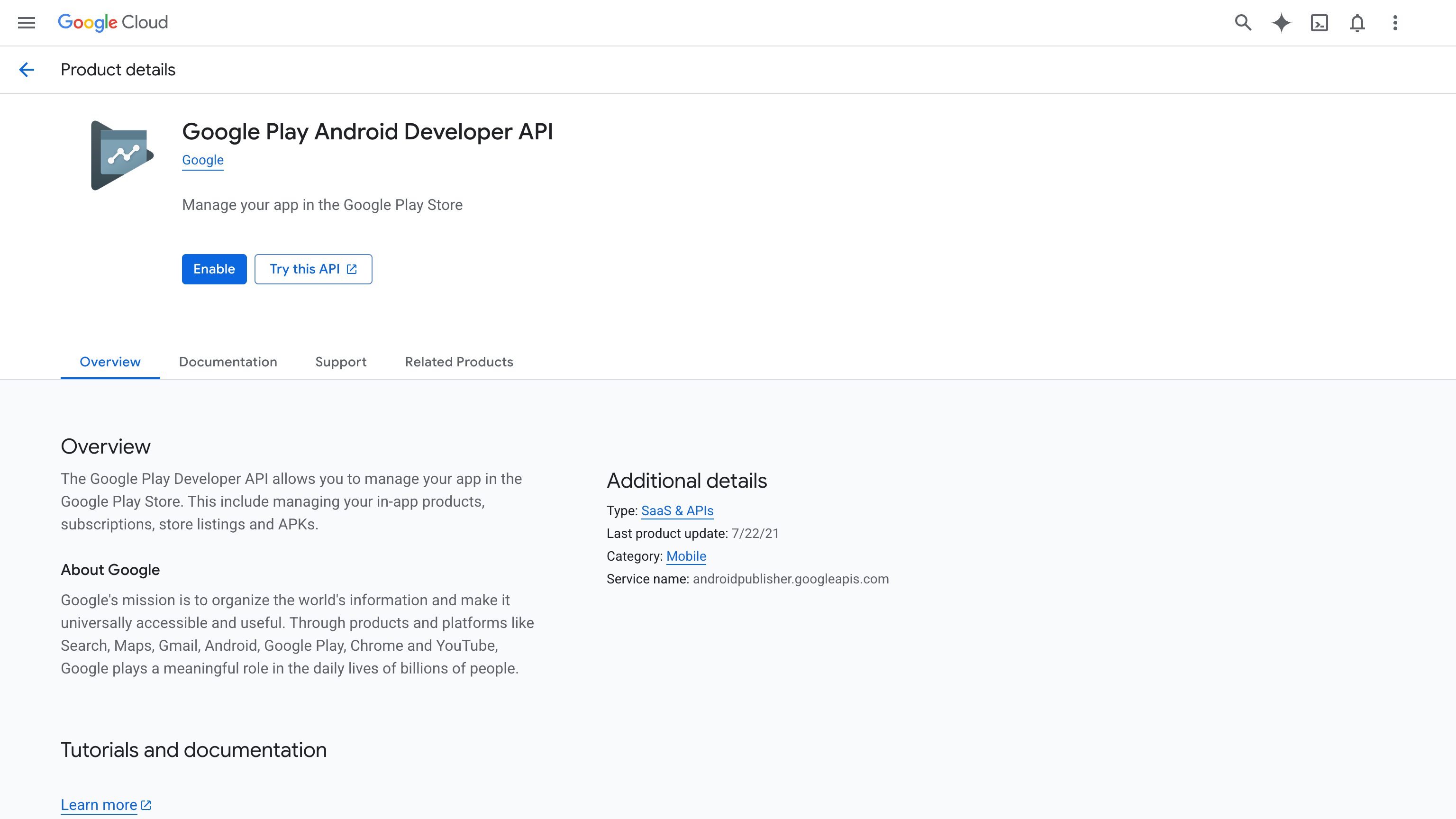
- Open the Google Play Android Developer API page in Google Cloud Console
- Make sure the correct project is selected in the top-left dropdown
- Click Enable
Create a Service Account
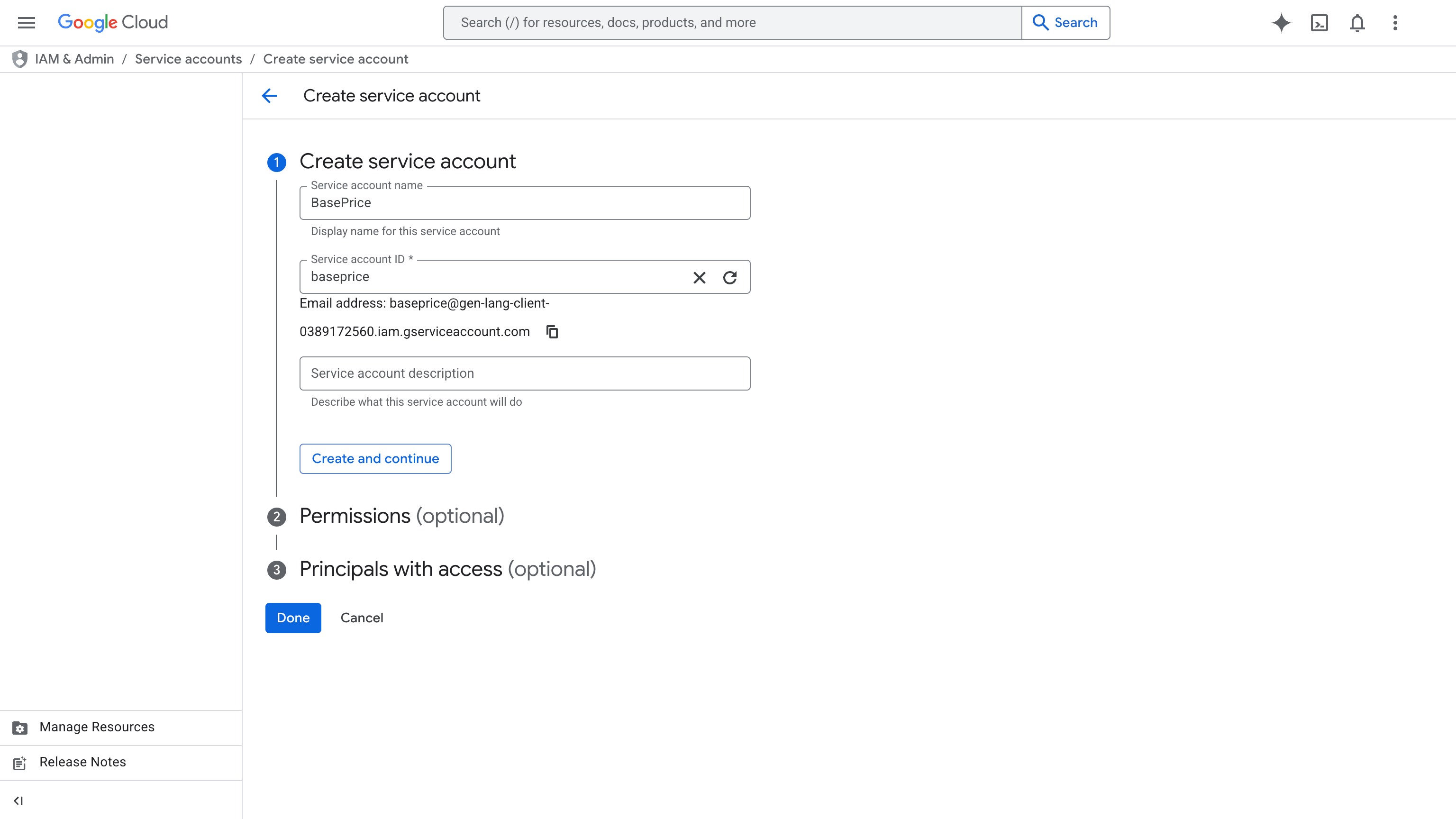
- In Google Cloud Console, go to IAM & Admin → Service Accounts
- Click Create Service Account
- Enter a name (e.g.,
StoreListing) — a service account ID and email will be generated automatically - Skip the optional Permissions and Principals steps — no Cloud roles are needed
- Click Done
Download the JSON Key
- In the service accounts list, click the account you just created
- Go to the Keys tab
- Click Add Key → Create new key → select JSON → Create
- The key file downloads automatically — save it somewhere safe
This JSON file grants API access to your Google Play account. Store it somewhere safe until you've added it to StoreListing.
Grant Access in Google Play Console
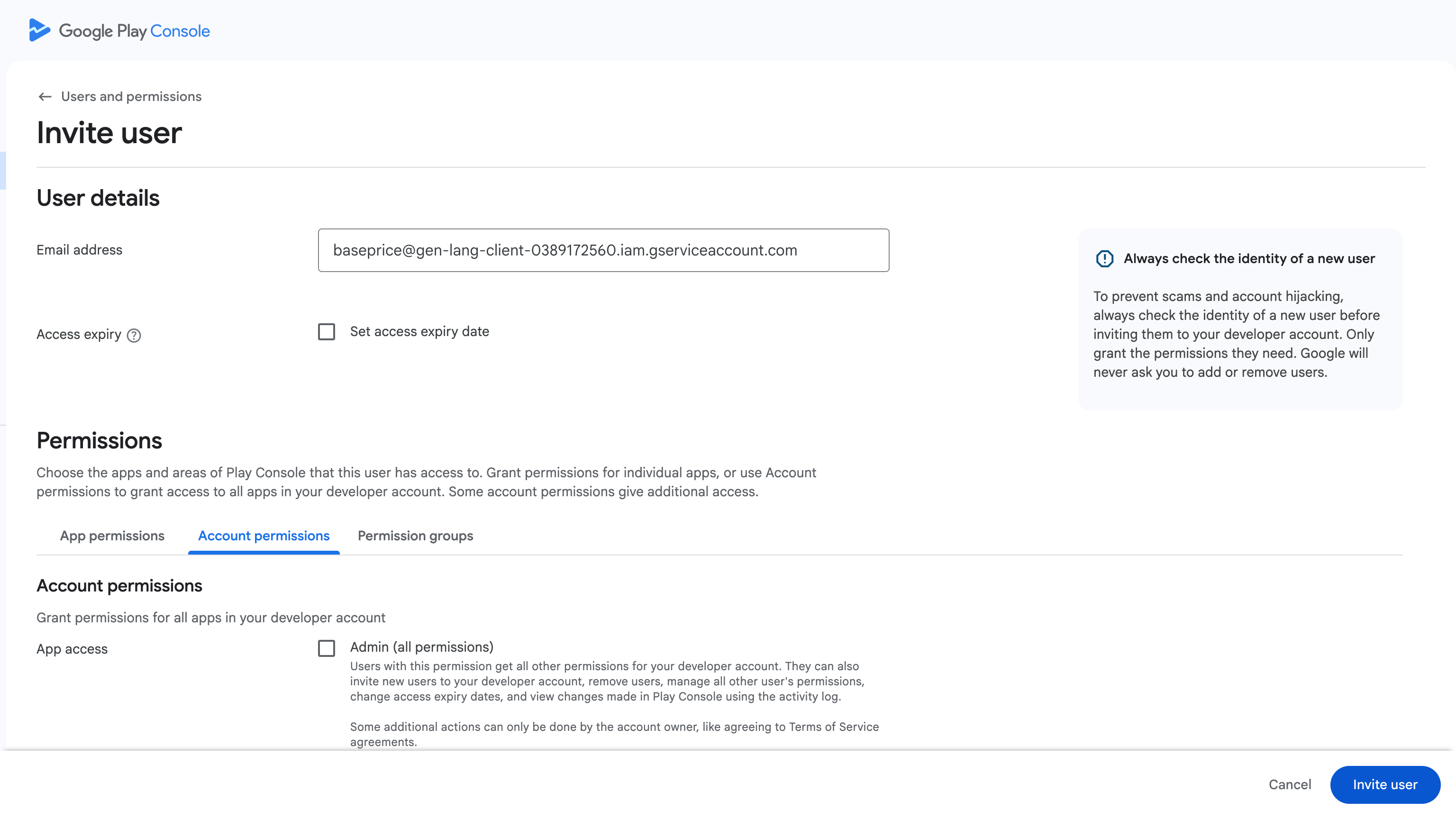
- Open Google Play Console → Users and permissions
- Click Invite new users and paste the service account email from Step 2
- Switch to the App permissions tab, add your app, and enable:
- View app information (read-only)
- Manage store presence (required to sync title, short description, full description, and graphics)
- Release to production, exclude devices, and use Play App Signing (required to sync release notes / "what's new" text on the production track)
- No Account permissions are required — grant everything at the App permissions level, scoped to just this app
- Click Invite user
Permissions can take up to 36 hours to propagate. If you get permission errors right after setup, wait and retry.
If you skip Release to production, exclude devices, and use Play App Signing, title/description/graphics sync still works — only the release notes ("what's new") field will be skipped during publish.
Add to StoreListing
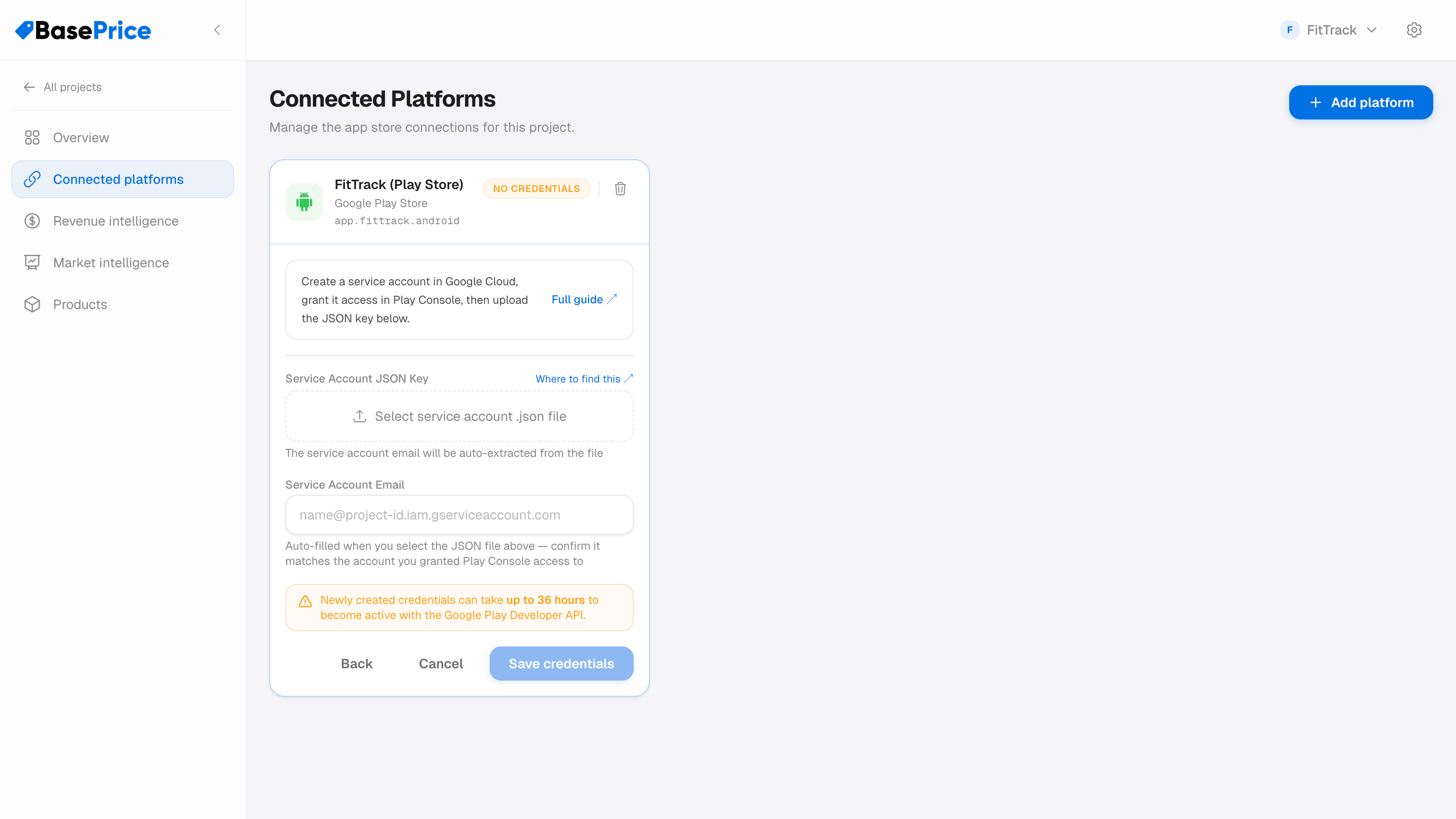
- In StoreListing, go to Connected Platforms and add Google Play
- Upload or drag-and-drop the JSON key file you downloaded in Step 3
- The Service Account Email will be auto-filled — confirm it matches the one you invited in Play Console
- Click Save credentials
Troubleshooting
| Issue | Solution |
|---|---|
| "Permission denied" | Verify the service account was invited in Google Play Console with the correct permissions (Step 4). Permissions can take up to 36 hours to propagate. |
| "API not enabled" | Enable the Google Play Android Developer API in Google Cloud Console (Step 1). |
| "Invalid key" | Make sure you're uploading the full .json key file, not just a portion of it. |